Use it
Reviewing a change to a dbt model? Open the two versions in a diff editor and click above any CTE:
- ▶ Preview shows that CTE's rows, on either side.
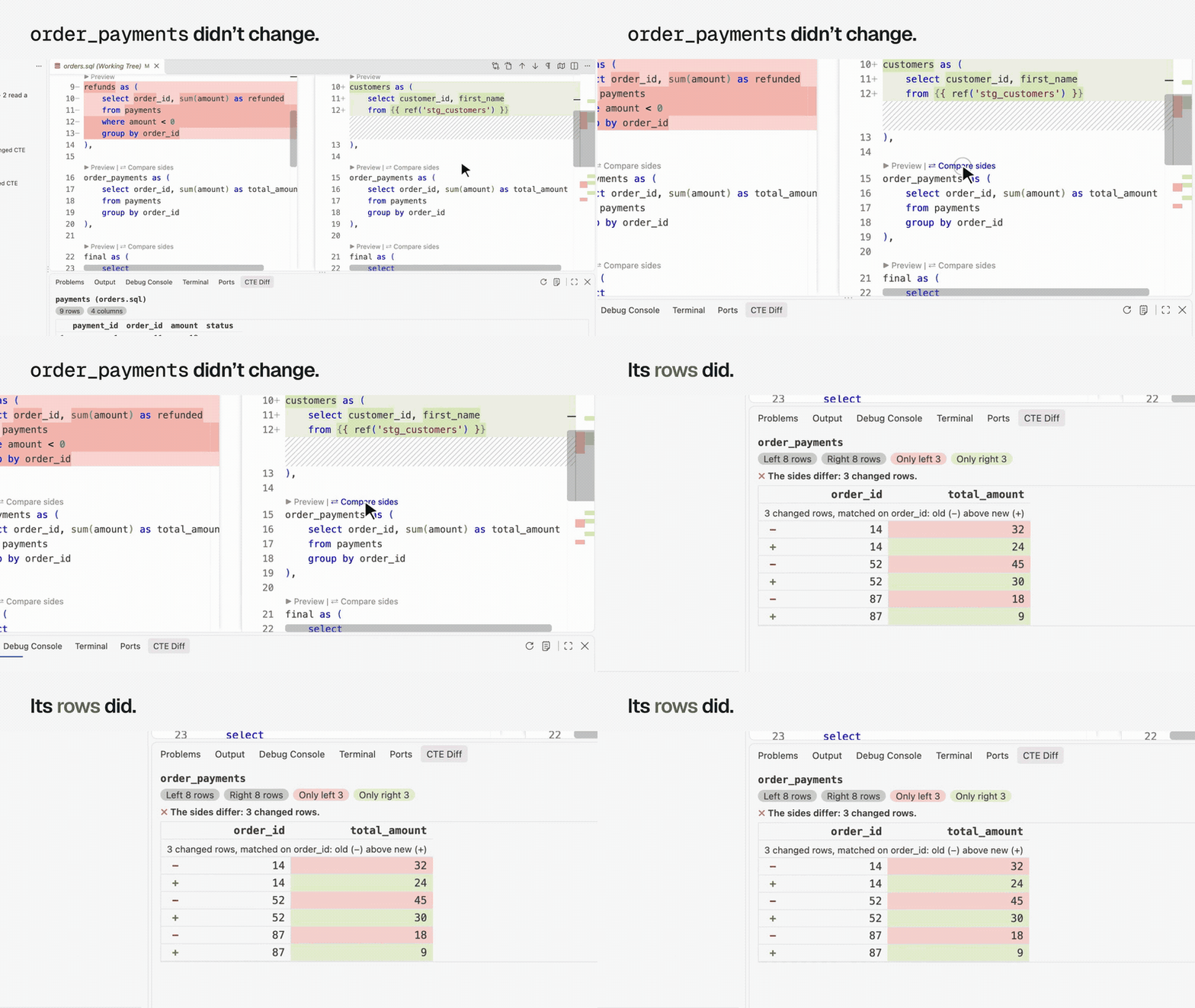
- ⇄ Compare sides runs the same CTE on both sides and shows the rows only one side returns, with row counts.
You see what the change did to the data, CTE by CTE, without copying SQL into a worksheet.
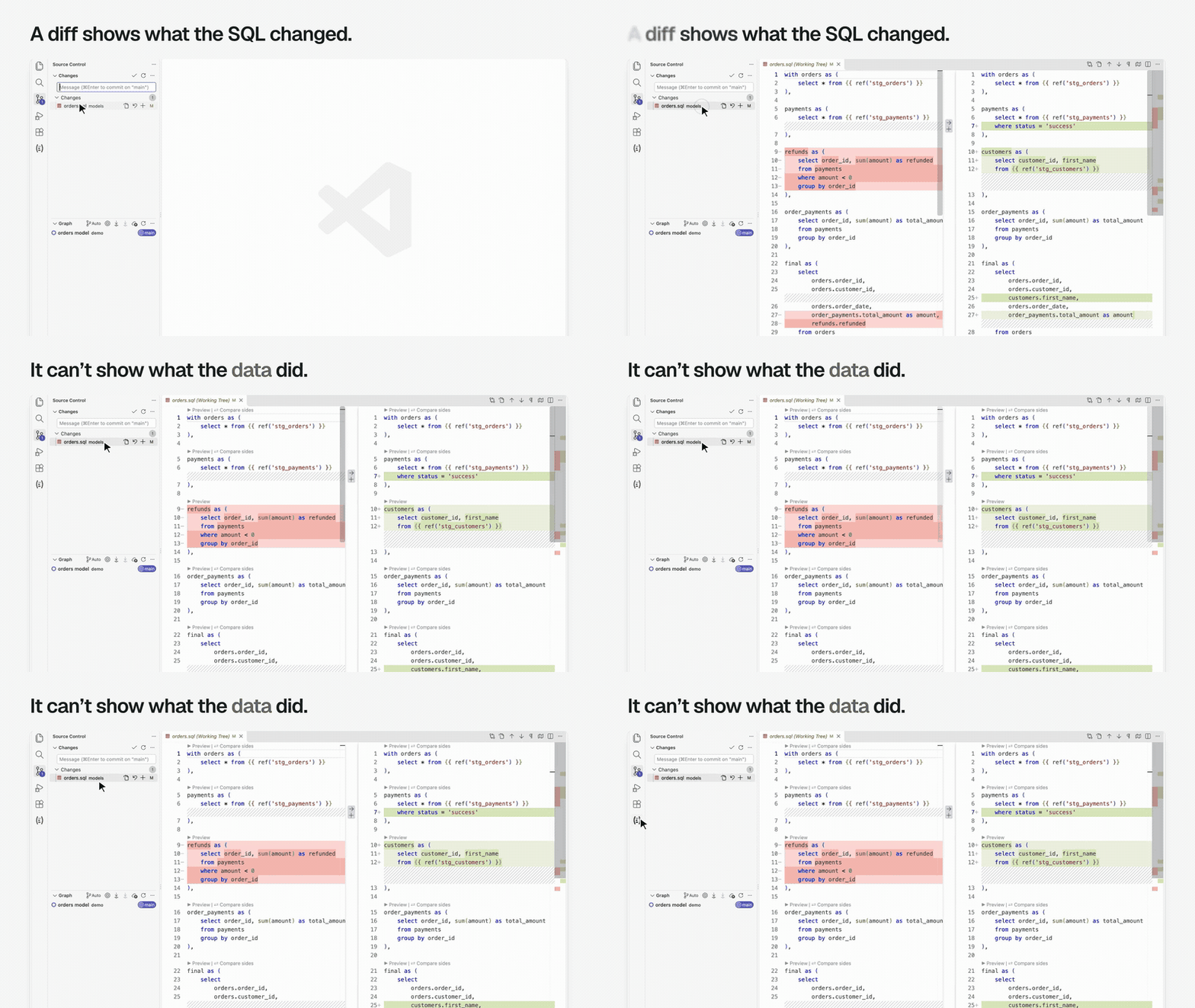
Open a comparison
- A git change: open the model from Source Control. Click ⇄ Compare a CTE… in the editor's title bar and pick a CTE. Diff editors hide the buttons above each CTE unless
"diffEditor.codeLens": trueis in your settings; the title bar and the sidebar work either way. - Any two files: in the sidebar's Compare Files, set Old and New, then click Open the diff. Or run CTE Diff: Compare Two Files… and pick the old file, then the new one.
- Pasted SQL: run CTE Diff: New Comparison (Paste Two Queries) from the Command Palette, or click its button in the sidebar's title bar. Paste the old query on the left and the new one on the right.
Every SQL file also gets ▶ Preview outside a diff. The last button previews the whole query. Outside a diff, the title bar's button is ▶ Preview a CTE….
The sidebar
Click the CTE Diff icon in the Activity Bar. It lists the CTEs of the SQL you're on.
When that SQL is one side of a diff, it lists every CTE of both sides, marked:
- changed: its text changed.
- new or removed: it's only on one side.
- reads a changed CTE: the text is the same, but it reads one that changed, so its rows can still differ.
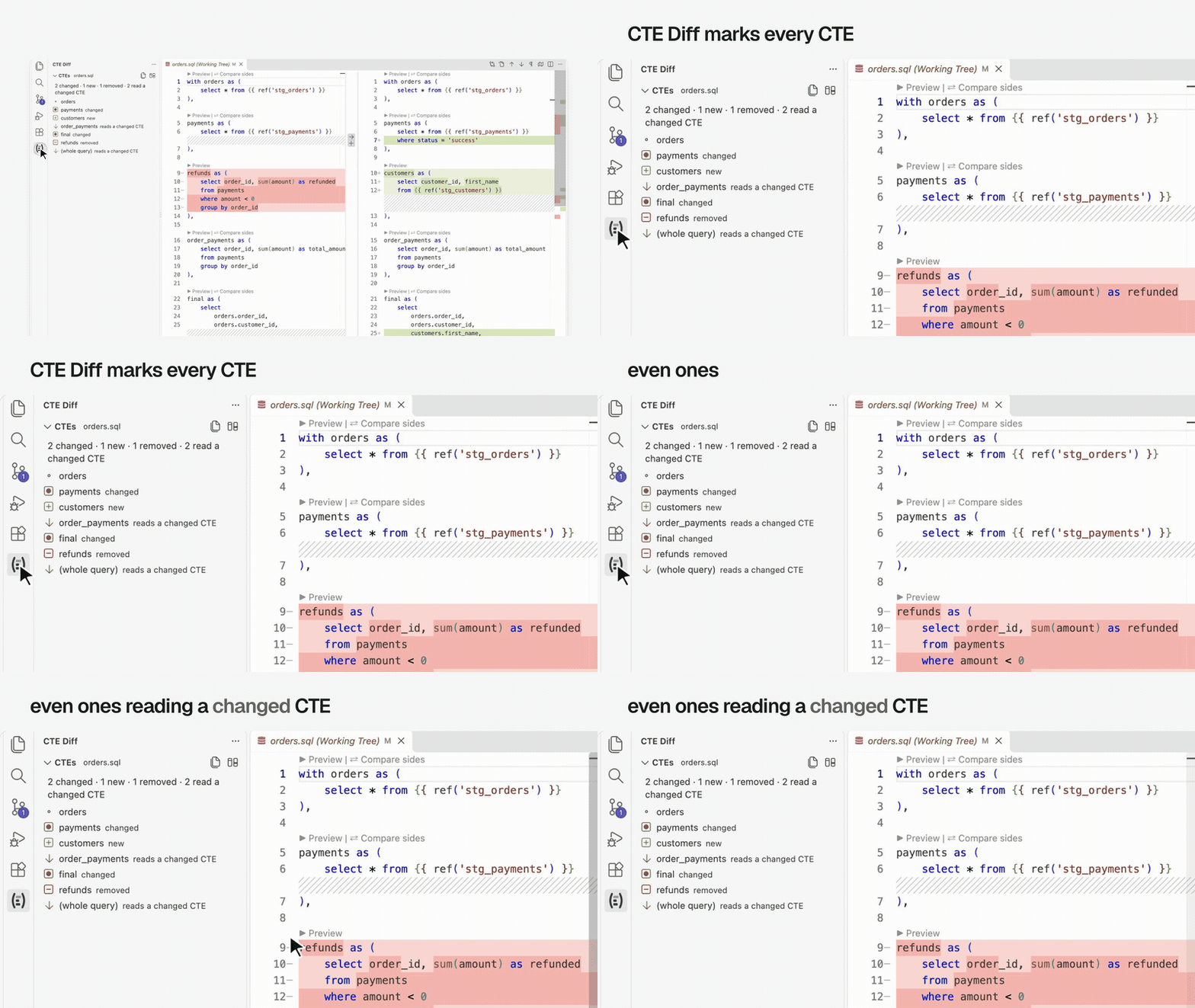
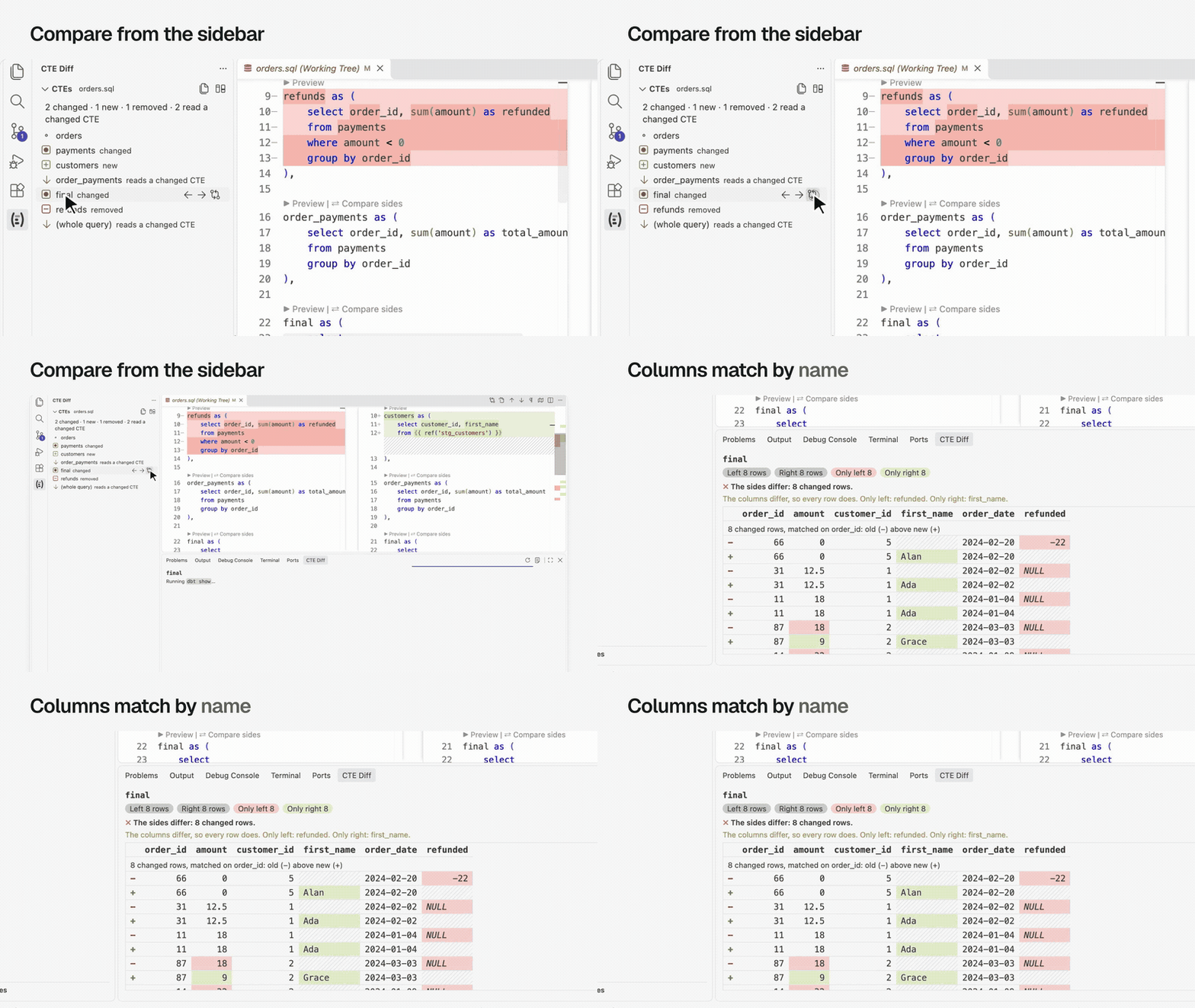
Hover a CTE for its buttons: ← previews the left (old) side, → previews the right (new) side, and ⇄ compares both. Hover its name for what the mark means. Click a CTE to jump to it.
Below the CTEs, Compare Files opens any two SQL files of the workspace side by side. Old starts as the file you open; click Old or New to pick another, or hover a file in the list below and click ← (use as old) or → (use as new). Then click Open the diff.
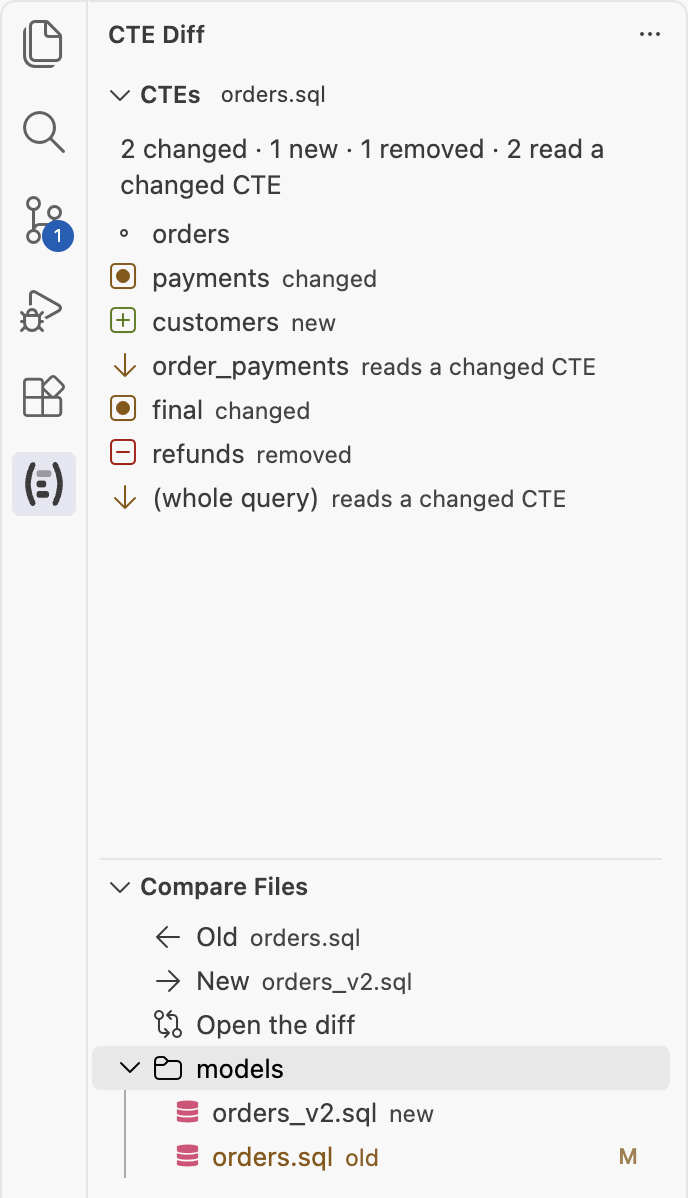
You can try the marking, and the rows, in the playground. It runs the same parser and the same SQL.
The results
Results open in the CTE Diff tab of the bottom panel, beside the Terminal.
- A preview shows the rows, up to
cteDiff.limit, with the row and column counts. - A comparison shows each side's row count and how many rows are only on the left or only on the right. Then it lists those rows, marked − (left, old) and + (right, new).
- A row that changed is listed as a pair: its old version above its new one, with the cells that changed highlighted. Rows pair up by their id columns: those named
id, or ending in_id,_key,_pkor_sk, when each id is unique on both sides. Rows with no partner are listed after the pairs. - When the two sides have different columns, it says which.
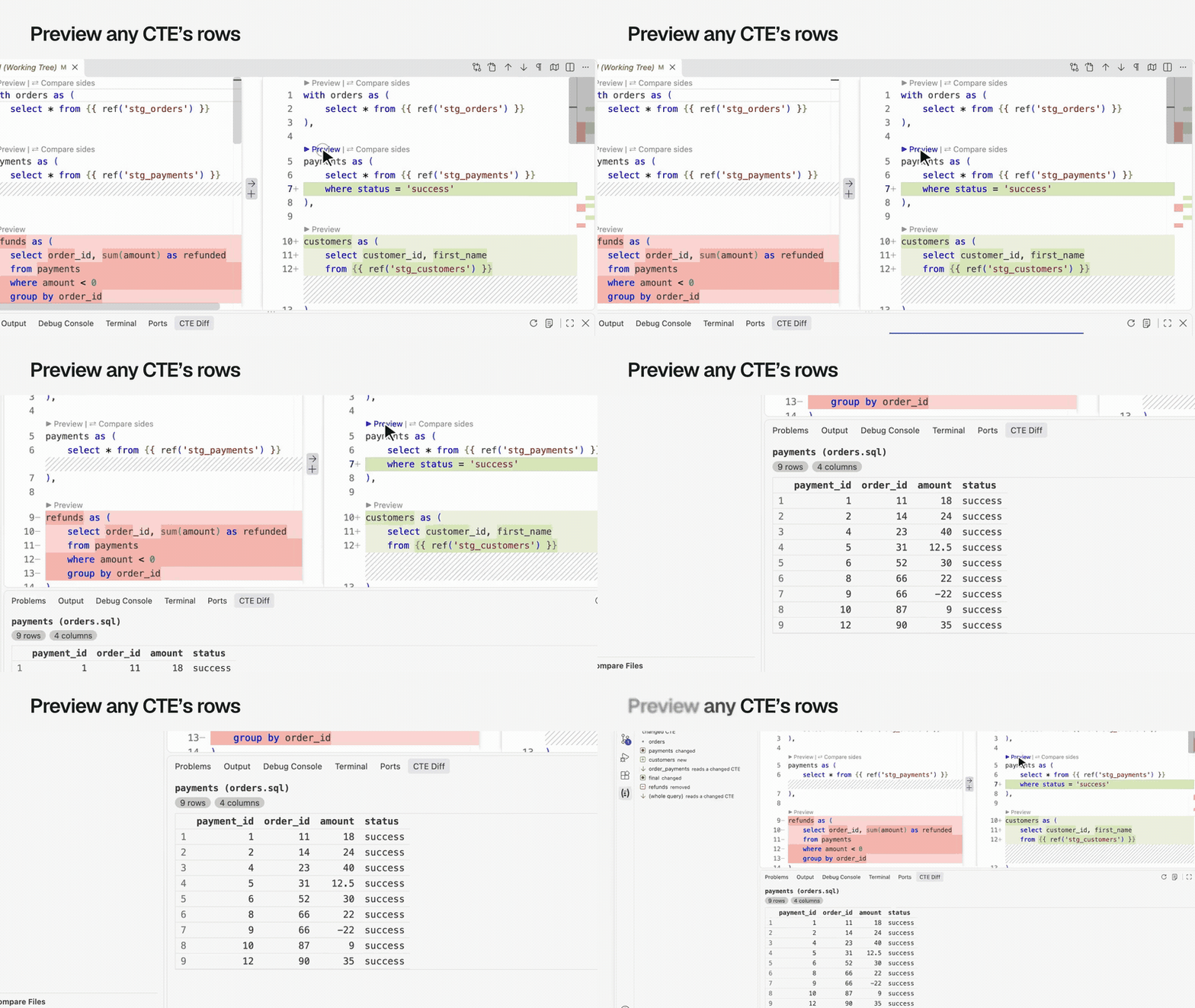
A preview of payments, the CTE that changed:
A comparison of order_payments, whose SQL didn't change but which reads payments:
A comparison of final, which gained a column and lost one:
The view's title bar has Run Again, which reruns the last preview or comparison after you edit the SQL, and Show Log. Each run is logged to Output › CTE Diff, along with the exact SQL. A new run cancels the one still going.